How to use Shiflo
Everything you need, in about five minutes. Your manager builds the rota — this is your side of it.
See your shifts
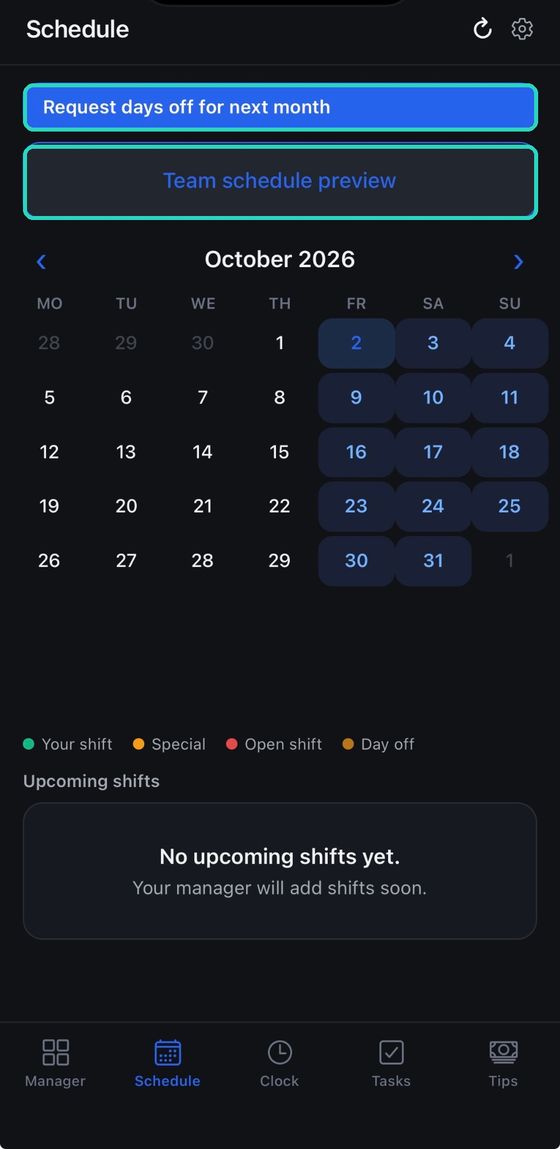
Open the Schedule tab. Your month is laid out as a calendar, and the coloured dots tell you what each day holds.
- Tap any day to see what is on it.
- Use ‹ and › to move between months.
- Team schedule preview shows who else is working, so you know who you are on with.
- Green — your shift
- Amber — a special event
- Red — an open shift nobody has taken yet
- Brown — a day off
What a shift day looks like
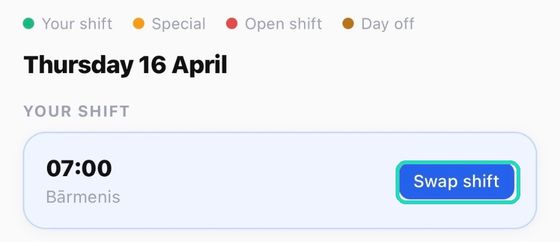
Tap a day you are working and the details appear underneath the calendar: your start time, the role you are on, and who else is in.
If you cannot work it, Swap shift is right there — see swapping a shift.
Clock in and out
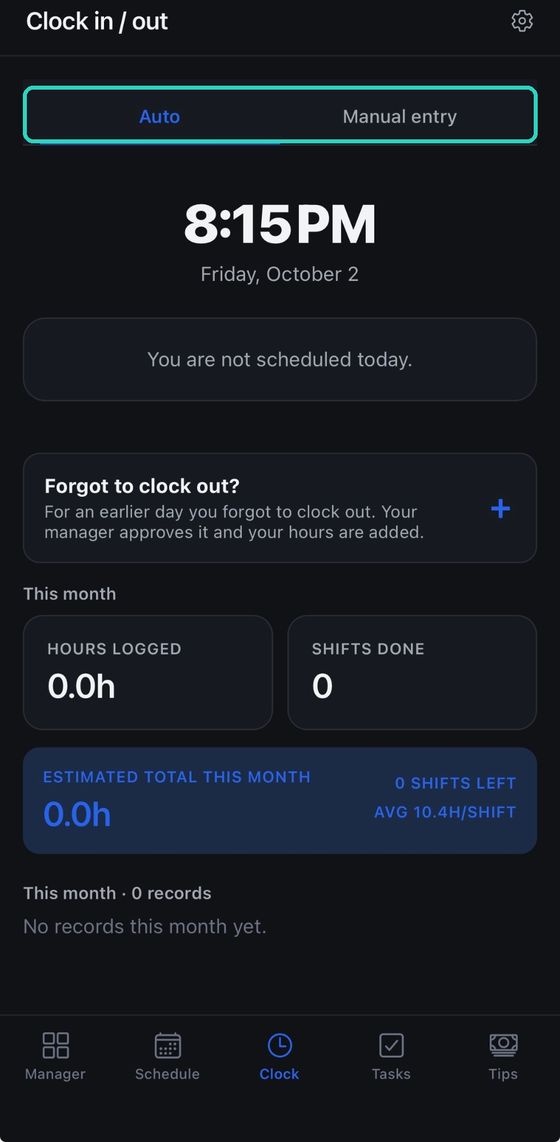
Open the Clock tab when you arrive. If you are scheduled, the clock-in button is waiting for you.
- Auto — tap to clock in when you start, and again to clock out when you leave. The time is taken automatically.
- Manual entry — type the times in yourself for today or yesterday, if you forgot to tap at the time.
If you forgot to clock out
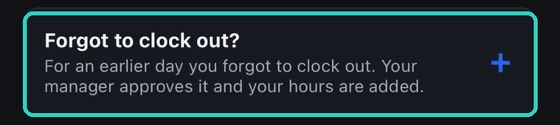
It happens. For a day that is older than yesterday, send your manager a request and they fill it in for you.
- On the Clock tab, tap the + on “Forgot to clock out?”
- Pick the day and type the hours you actually worked.
- Add a short note if it needs explaining, and send it.
- Once your manager approves it, the hours appear in your totals.
Check your hours
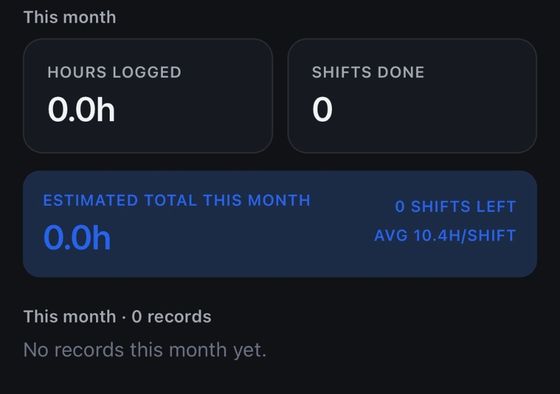
Further down the Clock tab you can see how the month is going: hours logged so far, shifts done, and an estimate of where you will land based on the shifts you still have booked.
Underneath that is every clock record for this month, so you can check a day before payday.
Ask for days off
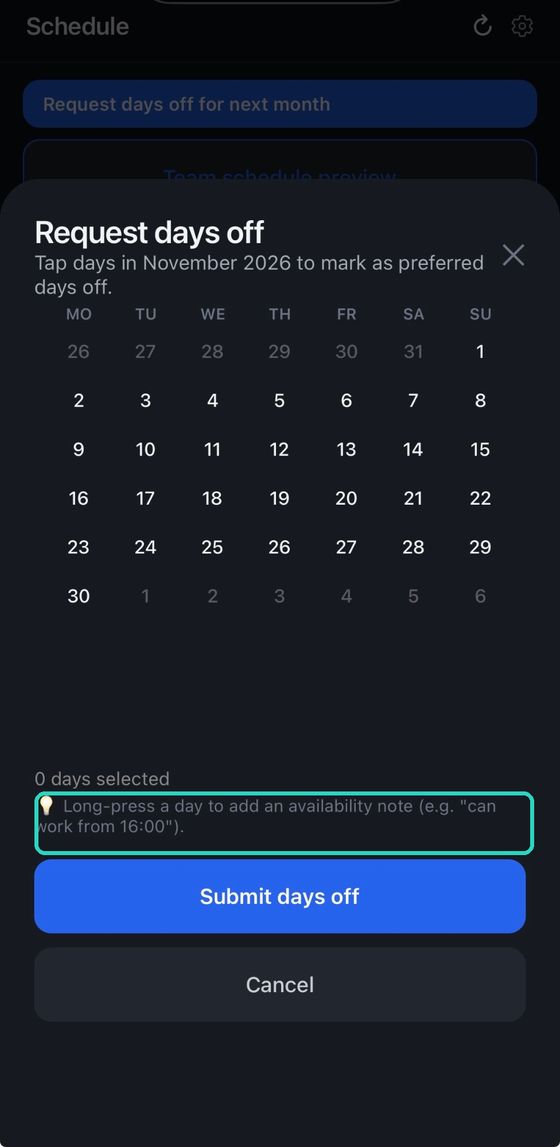
Before your manager builds next month’s rota, tell them which days you would rather not work.
- Tap Request days off for next month at the top of the Schedule.
- Tap the days you want off. Tap again to unselect.
- Tap Submit days off.
Swap or give away a shift
Tap the day on your Schedule, then Swap shift. You have two options:
- Give it away — offer the shift to colleagues who are free that day.
- Swap times — trade with someone already working that day in your role.
They get a notification, and nothing changes until they accept and your manager approves it. Until then the shift is still yours.
Tasks
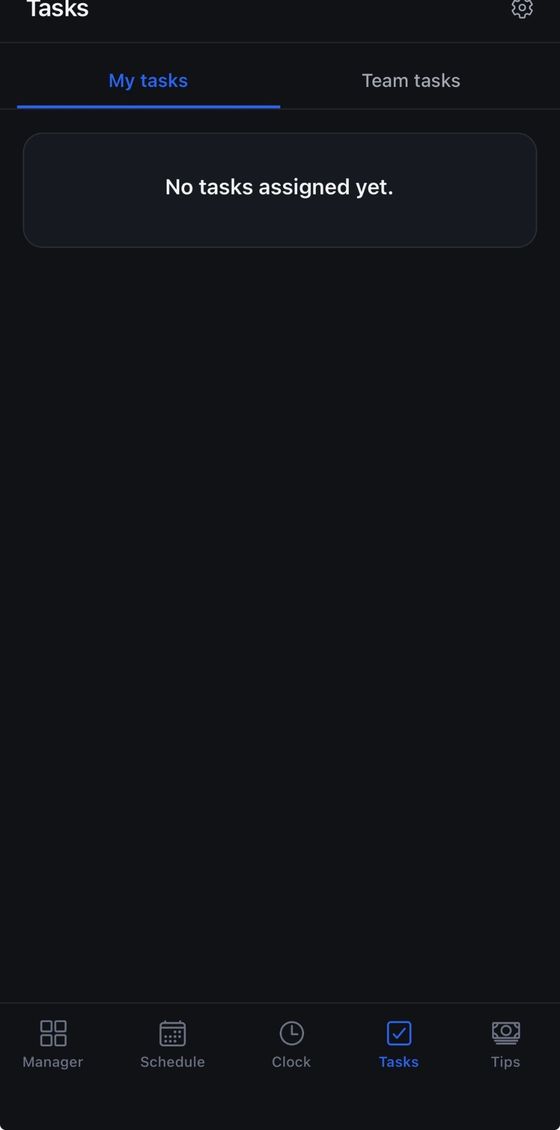
If your venue uses tasks, the Tasks tab lists what needs doing. My tasks is yours; Team tasks is everyone’s. Tick things off as you go.
Track your tips
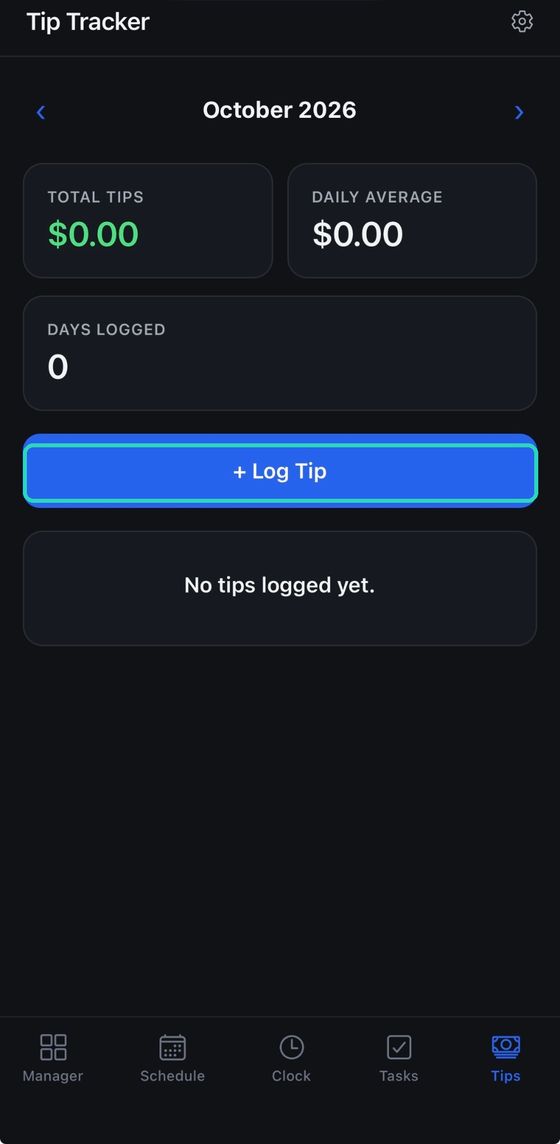
The Tips tab is your own private record — your manager does not see it.
- Tap + Log Tip at the end of a shift.
- Enter the amount.
Shiflo keeps your monthly total and a daily average, so you can see which shifts are actually worth taking.
Set your reminders
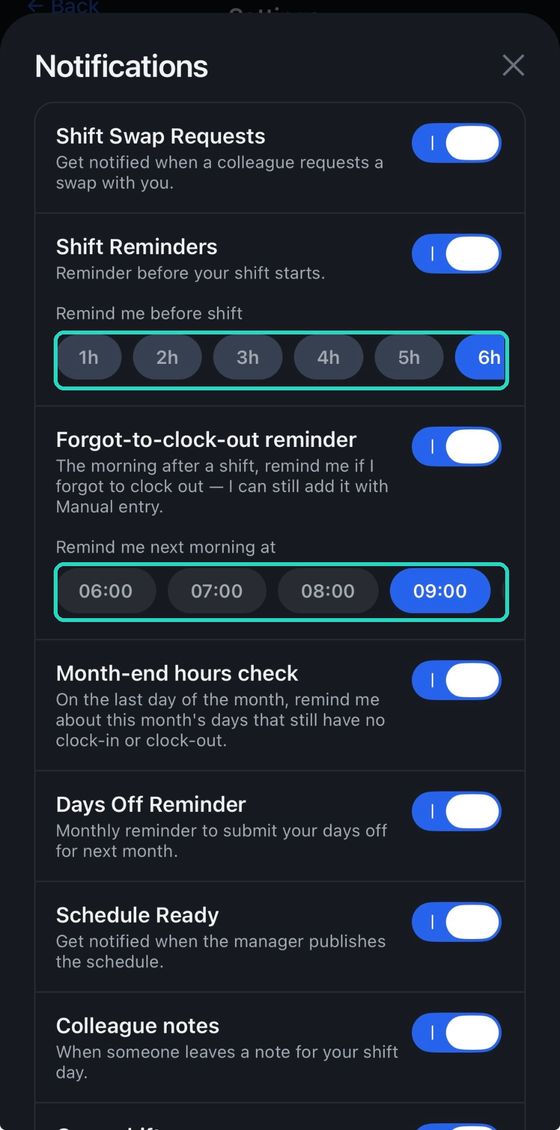
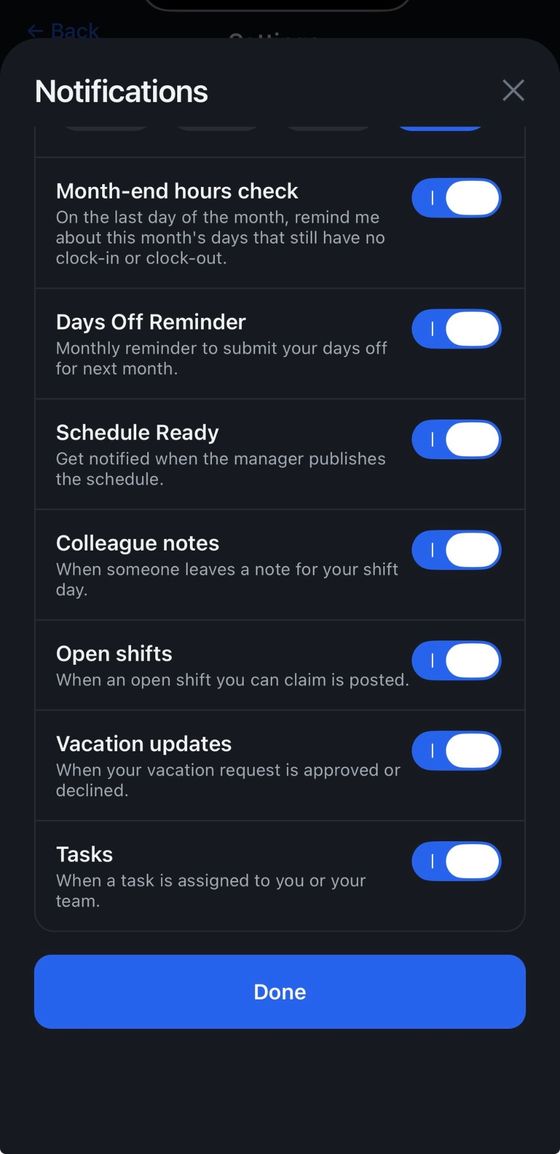
Settings → Notifications is worth two minutes. Everything can be switched off, and the two timing ones are the useful bit.
- Shift reminders — a nudge 1 to 6 hours before you start. Pick what suits your commute.
- Forgot-to-clock-out — next morning, if you left the clock running. Choose the hour you are actually awake.
- Month-end hours check — on the last day of the month, lists any days still missing their hours.
- Schedule ready — when your manager publishes a new rota.
- Colleague notes, open shifts, swap requests, holiday updates and tasks.
Settings worth knowing
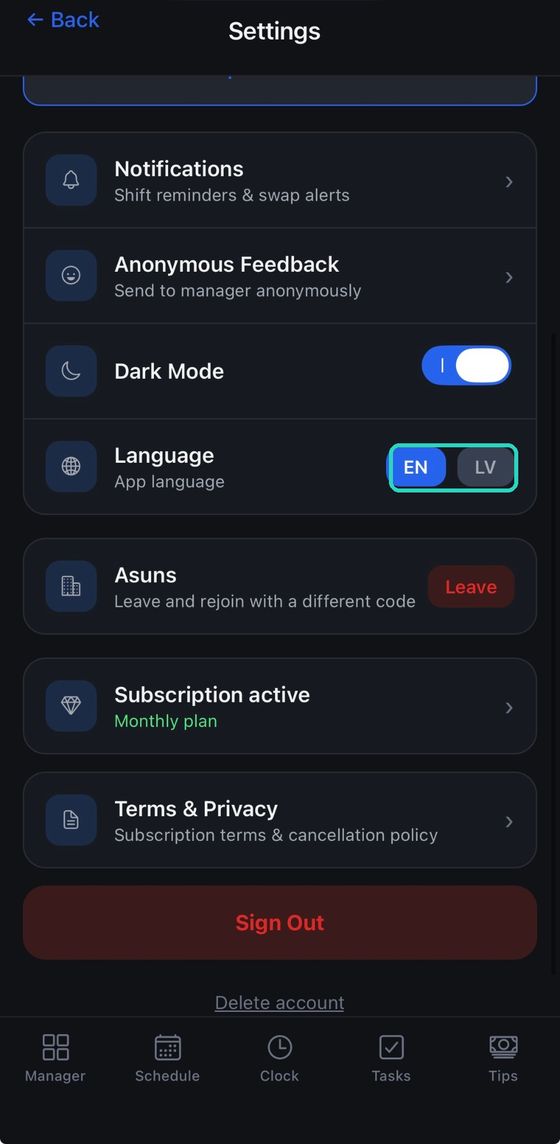
- Language — switch between English and Latvian any time.
- Dark mode — easier on the eyes on a late shift.
- Anonymous feedback — send your manager a message without your name on it. We do not record who wrote it.
- Leave — if you change jobs, leave the team and join a new one with a different code.
- Delete account — removes your account and your data for good.
Something not working the way it should? Email info@shiflo.app and we will sort it.